Local debug component run using common-runtime
Overview
In order to reproduce the runtime environment of component step run in local machine, Component SDK supports local debugging using common-runtime, which will create a debug environment is same as the environment in the remote compute. This document describes the scenarios of this feature and how to use it.
There are four steps to debug in local using common-runtime.
Get local debug command from failed run step in the portal
In this step, user right clicks on a step run in the portal, then click
Debugin the menu bar which will generate a command likeaz-ml run debug --run-id <failed-run-id>.Note: It’s only available for 1p customer (webxt).
Execute local debug command to prepare debug environment
User pastes and runs the debug command in local machine. This command will use common-runtime to generate the same environment as on AmlCompute. After executing the command, vscode will be opened and attached to the debug container and the working directory will be opened.
-
Users can debug directly in the opened vscode which is attached to the container. If the command of the component run startswith
python, it will automatically generate the.vscode/launch.jsonwhich is used to record the debugging configuration information. -
When the debug is completed, user could use the generated script to delete the debug containers.
Limitation
For component type, local debug using common-runtime supports Commandcomponent, Distributedcomponent and the child run of Sweepcomponent.
For remote compute type, local debug using common-runtime only supports AmlCompute.
For component command, only python style command is supported to generate vscode launcher.json.
For execution OS type, only support Linux as OS type of component.
Prerequisites
Install VScode following the instructions here.
Install Docker following the instructions here
Install the extensions
Remote - Containersin VScode.For Windows user, need to install WSL2 and config Docker using the WSL2 based engine.
Local debug using common-runtime
1. Get local debug command from failed run step in the portal
Right click on a step run in the portal, then click
Debugin the menu bar.
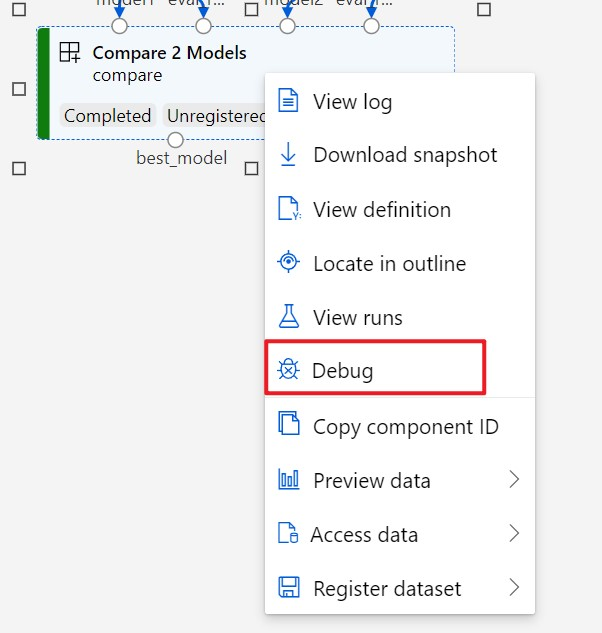
It will open a dialog, paste the
az-ml run debugcommand.
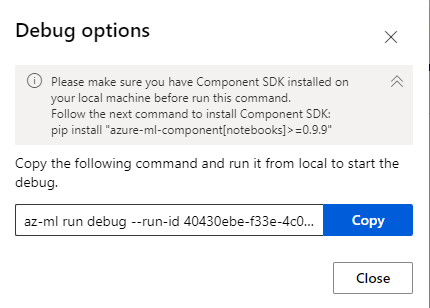
Note: It’s only available for 1p customer (webxt).
2. Execute local debug command to prepare debug environment
Paste and run the debug command in the terminal. If you are a Windows user, you need to execute this command in WSL2.
In the command az-ml run debug, the following steps will be operated:
Get common-runtime information about step run from backend by the run-id.
Generate the same debug environment as the remote
Get bootstrapper through common-runtime info.
Execute bootstrapper to generate the debug container, which is same as the remote. If the command of the step run starts with
python, debug configuration will be generated in working directory.
Vscode attach to the container and open the working directory
The command execution log liks below:

After execution, it will generate a folder ~/common-runtime-debug/<run-id>/. The folder structure likes below:
./
├── DEBUG                   Contains debug container_name and working_dir path
├── remove_containers.sh    Script to remove debug containers when debug compeleted
├── vm-bootstrapper         Bootstrapper binary
├── stderr                  Bootstrapper execution stderr log
└── stdout                  Bootstrapper execution stdout log
Note: Because of pulling image and downloading dataset, this step may take a long time.
3. Debug in the container
After the command is executed, vscode will be opened and attached to the debug container and the working directory will be opened.
If the command of the component run startswith python, it will automatically generate the .vscode/launch.json which is used to record the debugging configuration information. User can press F5 to debug the component code.
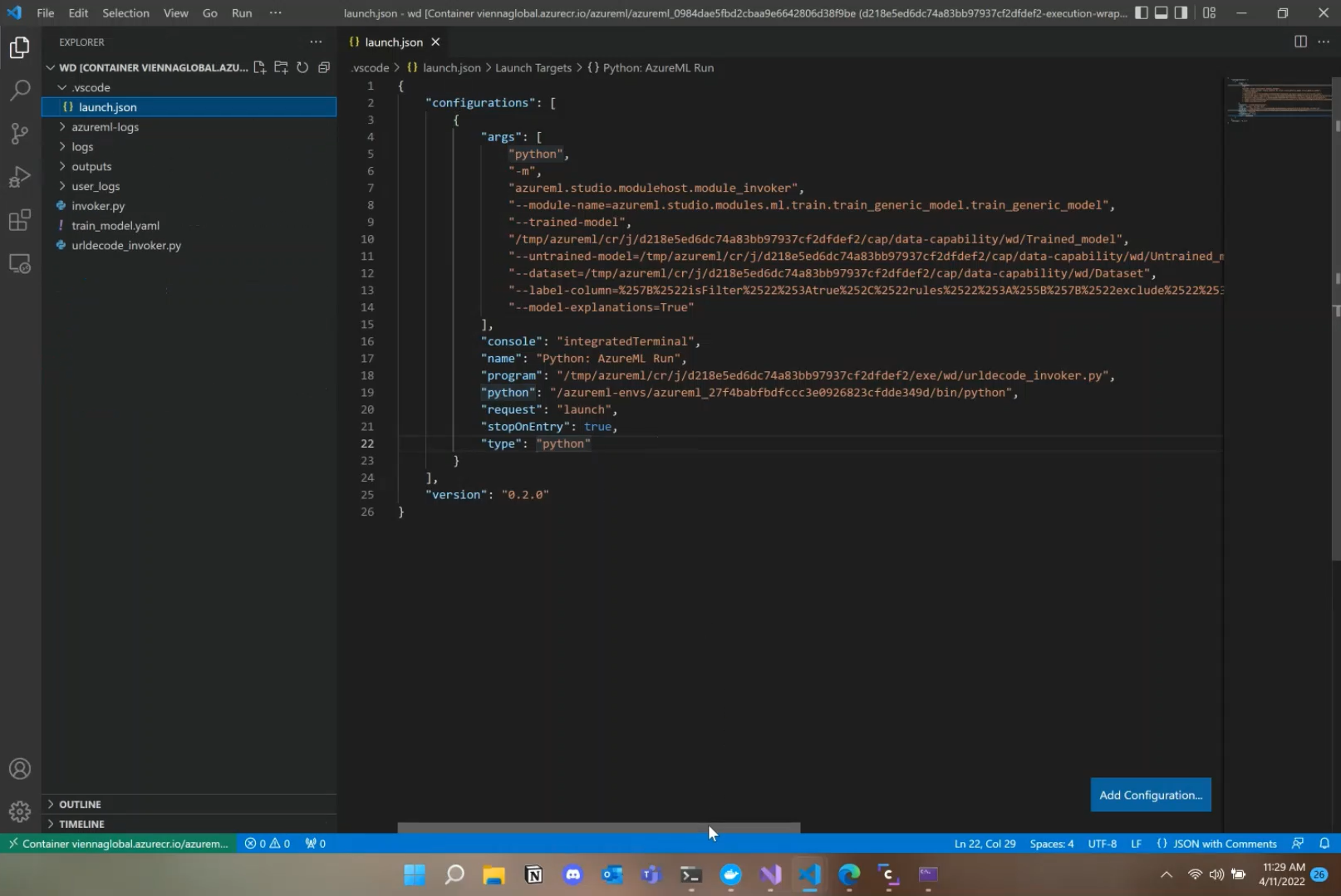
See reference for more detail about debugging.
4. Remove debug containers
When the debug is completed, user can execute this command to delete the debug containers.
sh ~/common-runtime-debug/<run-id>/remove_containers.sh
FAQ
az-ml run debug command
The details of az-ml run debug as follows:
usage: az-ml run debug [-h] [--subscription_id SUBSCRIPTION_ID] [--resource_group RESOURCE_GROUP] [--workspace_name WORKSPACE_NAME] [--debug] [--run-id RUN_ID]

A CLI tool to local debug using common runtime.

optional arguments:
  -h, --help            show this help message and exit
  --subscription_id SUBSCRIPTION_ID, -s SUBSCRIPTION_ID
                        Subscription id, required when pass run id.
  --resource_group RESOURCE_GROUP, -r RESOURCE_GROUP
                        Resource group name, required when pass run id.
  --workspace_name WORKSPACE_NAME, -w WORKSPACE_NAME
                        Workspace name, required when pass run id.
  --debug               Increase logging verbosity to show all debug logs
  --run-id RUN_ID       The run id of step run to be debugged.
Common issues
The compute could not authenticate with the Docker registry
If you meet the following error when executing az-ml run debug.
CommonRuntimeJobError {
    code: "AggregatedUnauthorizedAccessError",
    category: UserError,
    message: Compliant(
        "Failed to pull Docker image 848b8fb7991f410dafa12b95593b519c.azurecr.io/azureml/azureml_301b04d9d1ade06963f05664646fb2d5. This error may occur because the compute could not authenticate with the Docker registry to pull the image. If using ACR please ensure the ACR has Admin user enabled or a Managed Identity with `AcrPull` access to the ACR is assigned to the compute. If the ACR Admin user's password was changed recently it may be necessary to synchronize the workspace keys.",
    ),
    details: [
        Detail {
            name: "Authentication methods attempted",
        },
        Detail {
            name: "Note",
            value: Literal(
                Compliant(
                    "Identity (MSI) not found on the compute, if the intention is to authenticate with identity ensure that a Managed Identity with `AcrPull` access to the ACR is assigned to the compute",
                ),
            ),
        },
        Detail {
            name: "Error",
            value: Error(
                CommonRuntimeJobError {
                    code: "DockerUnauthorizedAccessError",
                    category: UserError,
                    message: Compliant(
                        "Failed to pull Docker image 848b8fb7991f410dafa12b95593b519c.azurecr.io/azureml/azureml_301b04d9d1ade06963f05664646fb2d5 with authentication mode Anonymous due to: Docker responded with status code 500: {\"message\":\"Get https://848b8fb7991f410dafa12b95593b519c.azurecr.io/v2/azureml/azureml_301b04d9d1ade06963f05664646fb2d5/manifests/latest: unauthorized: authentication required, visit https://aka.ms/acr/authorization for more information.\"}\n. Compute could not authenticate with the Docker registry to pull the image.",
                    ),
                    details: [],
                    error: None,
                },
            ),
        },
    ],
    error: None,
}
It means the local machine could not authenticate with the Docker registry to pull the image. You need to execute this command az acr login --name <registry-name> to login the registry.
See reference for more detail about ACR.
Unknown runtime specified nvidia
If you meet the following error when executing az-ml run debug, it means that NVIDIA is not configured in docker runtimes。
CommonRuntimeJobError {
   code: "OrchestrateJobError",
   category: SystemError,
   message: Compliant(
     "Failed to execute command group with error API queried with a bad parameter: {\"message\":\"Unknown runtime specified nvidia\"}\n",
   ),
   details: [],
}
You need follow these steps to install nvidia-container-runtime and config docker runtimes:
Install nvidia-container-runtime
$ sudo apt-get install nvidia-container-runtime
Add nvidia to docker runtime
$ sudo tee /etc/docker/daemon.json <<EOF
{
    "runtimes": {
        "nvidia": {
            "path": "/usr/bin/nvidia-container-runtime",
            "runtimeArgs": []
        }
    }
}
EOF
$ sudo pkill -SIGHUP dockerd
Restart docker service and check runtime is added
$ sudo systemctl daemon-reload
$ sudo systemctl restart docker
$ docker info|grep -i runtime
 Runtimes: nvidia runc
 Default Runtime: runc
See reference for more detail about nvidia-container-runtime.