Invoke AML pipeline through Aether module
Overview
By leveraging existing pipeline cloud in Aether, we can invoke the AML pipeline through the Aether module. The Aether module can be connected to other modules in Aether world, so that customer can construct a hybrid pipeline (partial Aether pipeline and partial AML pipeline). In this way, customer can benefit new features only available on AML before they can migrate their whole Aether pipeline to AML.
In this document, we will demonstrate how to publish an AML pipeline with component SDK and invoke the AML pipeline through Aether module.
Prerequisites
Install the latest version of component SDK. Reference getting started on how to install.
Pipeline cloud onboard
Add Aether SP to your AML workspace as Contributor
SP: AetherPipelineCloudService. ClientId=e045cc76-6047-4c2f-8a08-6a7c6cae97ae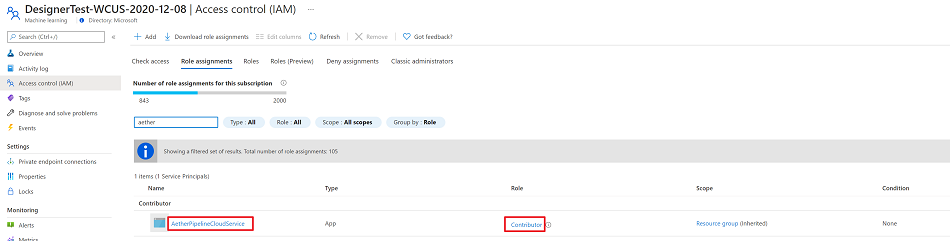
Onboard your AML workspace to Aether
Send email to aedevs@microsoft.com with your workspace information: Region, Subscription, ResourceGroup, Workspace name, and SG(s) that can use this workspace.
Reference here for more details.
Download and install Aether client app from here.
Supported
Specify compute target at runtime through pipeline parameter.
Specify the AML pipeline’s input at runtime.
Convert input data path to AML saved dataset at runtime.
Configure pipeline’s output location at runtime.
Expose pipeline’s output as Aether module’s output and connect to downstream Aether modules.
ITP job submission.
Scope job submission.
Sample
The sample notebook can be found here: https://github.com/Azure/DesignerPrivatePreviewFeatures/blob/master/azure-ml-components/samples/setup-published-pipeline.ipynb Follow how to access instructions if you meet 404 error when accessing the samples.
Sample Aether experiment: aether://experiments/81ca3b5c-e8fc-4352-965e-b4aa0567af0c
Construct and publish AML pipeline using component SDK.
# load your workspace
from azureml.core import Workspace
ws = Workspace.from_config()

# prepare a dataset as pipeline's input
from azureml.core import Datastore, Dataset
global_datastore = Datastore(ws, name="azureml_globaldatasets")
movie_ratings_data = Dataset.File.from_files(global_datastore.path('GenericCSV/Movie_Ratings'))

# register a component to construct the pipeline
from azure.ml.component import Component
write_input_path_to_output_txt_func = Component.from_yaml(workspace=ws, yaml_file='components/pipeline-cloud/write-input-path-to-output-txt/component_spec.yaml')

# define your AML pipeline
from azure.ml.component import dsl, Pipeline
@dsl.pipeline(name='simple_demo_pipeline', description='write input path to output txt file')
def simple_demo_pipeline(output_txt_name, compute_target, input_data_path=movie_ratings_data_path) -> Pipeline:
    step1 = write_input_path_to_output_txt_func(input_dir=input_data_path, str_param=output_txt_name)
    step1.runsettings.target = compute_target

    return {'created_output': step1.outputs.output_dir}

# Instantiate your pipeline
pipeline = simple_demo_pipeline(output_txt_name='test_output', compute_target='aml-compute')

# publish your pipeline
pp = pipeline._publish(experiment_name='write_inputpath_to_output', name='simple_demo_pipeline')

# print your published pipeline's id
print(pp.id)
Create Aether module to invoke your published pipeline from Aether client.
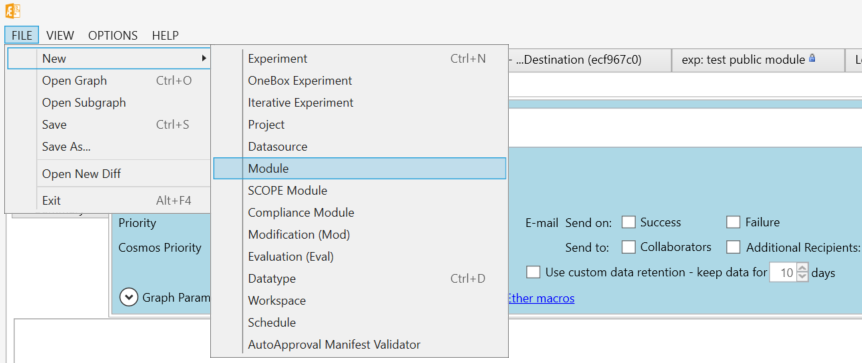
Open Aether client, FILE->New->Module
Fill in the module creation information
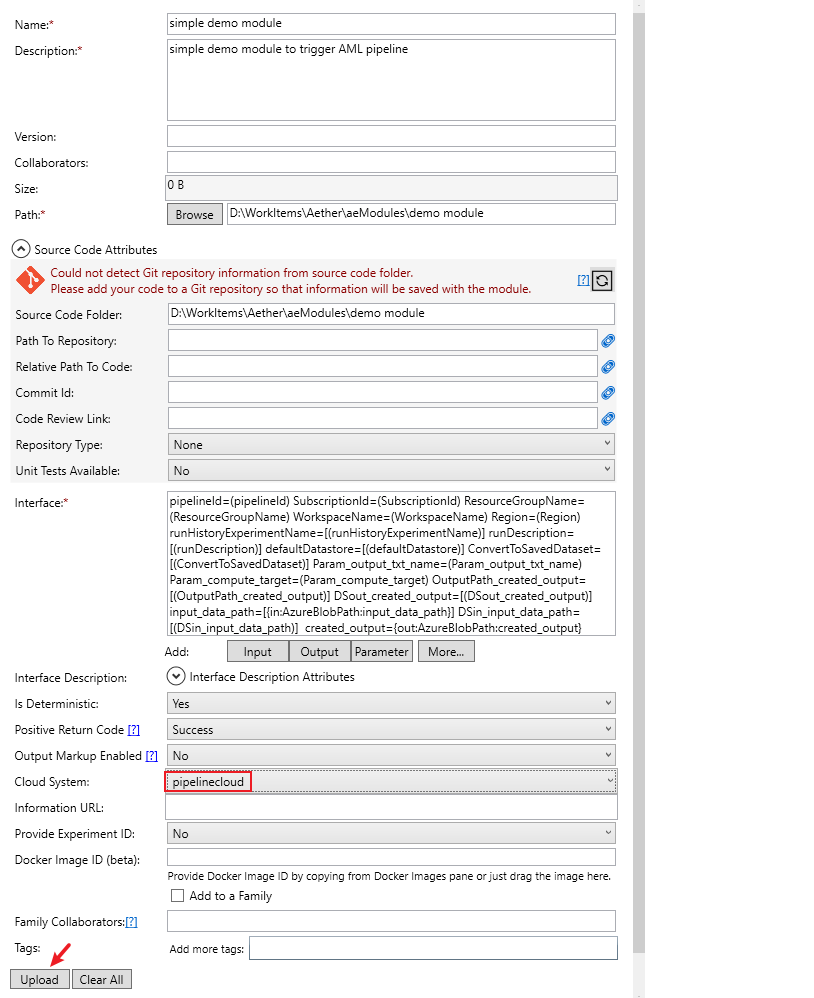
Please Note:
Path should be the source code directory of your module. To submit an AML pipeline, we don’t need any extra codes here. So just create a folder and put a dummy empty txt file in it. For example:

Positive Return Code should be ‘Success’.
Cloud System should be ‘pipelinecloud’.
Interface is the most important section. We can divide it into four parts.
In this sample, we use below interfaces to create the Aether module:
pipelineId=(pipelineId) SubscriptionId=(SubscriptionId) ResourceGroupName=(ResourceGroupName) WorkspaceName=(WorkspaceName) Region=(Region) runHistoryExperimentName=[(runHistoryExperimentName)] runDescription=[(runDescription)] defaultDatastore=[(defaultDatastore)] ConvertToSavedDataset=[(ConvertToSavedDataset)] Param_output_txt_name=(Param_output_txt_name) Param_compute_target=(Param_compute_target) OutputPath_created_output=[(OutputPath_created_output)] DSout_created_output=[(DSout_created_output)] input_data_path=[{in:AzureBlobPath:input_data_path}] DSin_input_data_path=[(DSin_input_data_path)] created_output={out:AzureBlobPath:created_output}
Common parameters:
The common parameters’ name was pre-defined and cannot be changed. The mandatory parameters must be added to the interface part. For more information about what these parameter means, please refer here:
Note that ConvertToSavedDataset is new feature and not documented in Aether wiki yet. It is used to configure whether to convert the input data paths as AML saved dataset at runtime. The input data path should be converted to AML dataset at runtime if you want to consume AdlPath with mount mode at runtime. The default value of this parameter is ‘true’.
Normal Pipeline parameters
Let’s say your pipeline has a pipeline parameter named ‘fraction’ of type ‘float’, whose lower bound is 0.0, upper bound is 1.0 and default value is 0.618. Then you should add below interface to expose this parameter in Aether module:
Param_fraction=[(Param_fraction:float,0,1:default,0.618)]Here, we have a normal string pipeline parameter, so we add the interface:Param_output_txt_name=(Param_output_txt_name)Pipeline parameter for compute target
We add
Param_compute_target=(Param_compute_target)here, so that we can configure compute target for the pipeline.Output setting parameter
Since we have defined our pipeline’s output, we can add interface OutputPath_<your_output_name> to specify the output relative path and DSout_<your_output_name> to specify the output datastore in Aether module so that we can configure the output’s location. On above code snippet, we have defined the output with name ‘created_output’, so we add interfaces for it like this:
OutputPath_created_output=[(OutputPath_created_output)] DSout_created_output=[(DSout_created_output)]Output
We also add output interface so that our pipeline’s output can be consumed by downstream.
created_output={out:AzureBlobPath:created_output}
After the information filled, click ‘Upload’. A short while later, you should get the module created successfully message.

Invoke your AML pipeline through Aether module from Aether client.
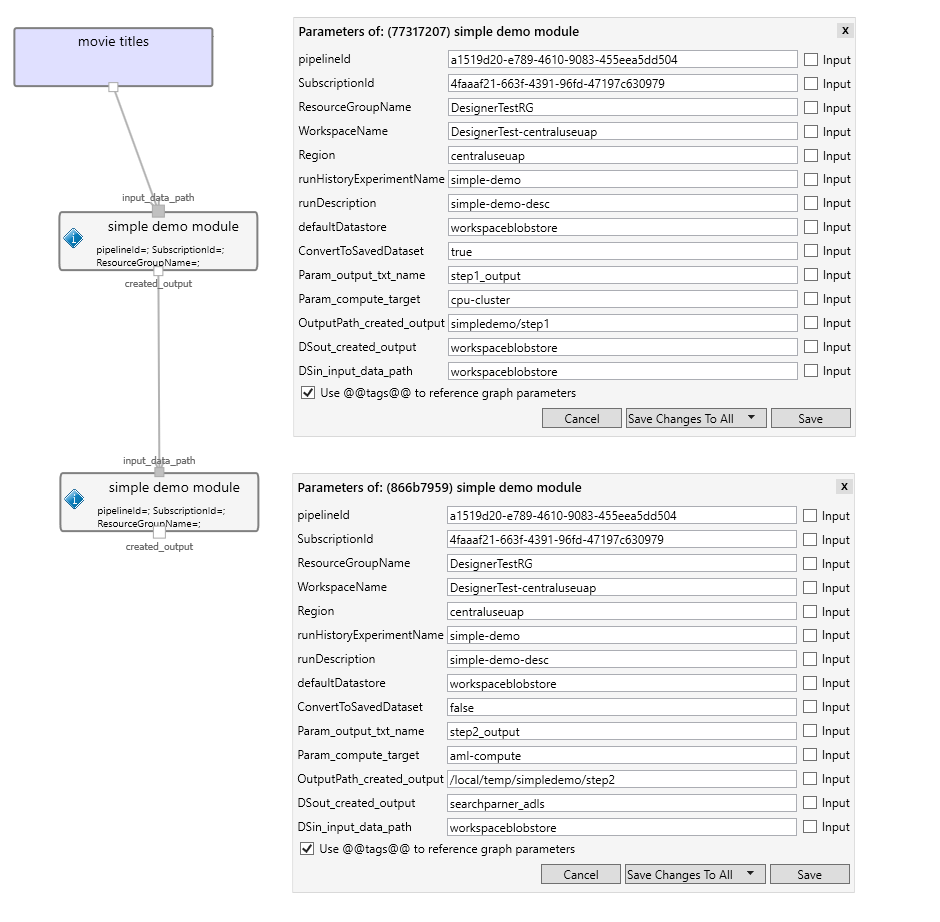
Create a new Aether experiment, and drag your created module into it
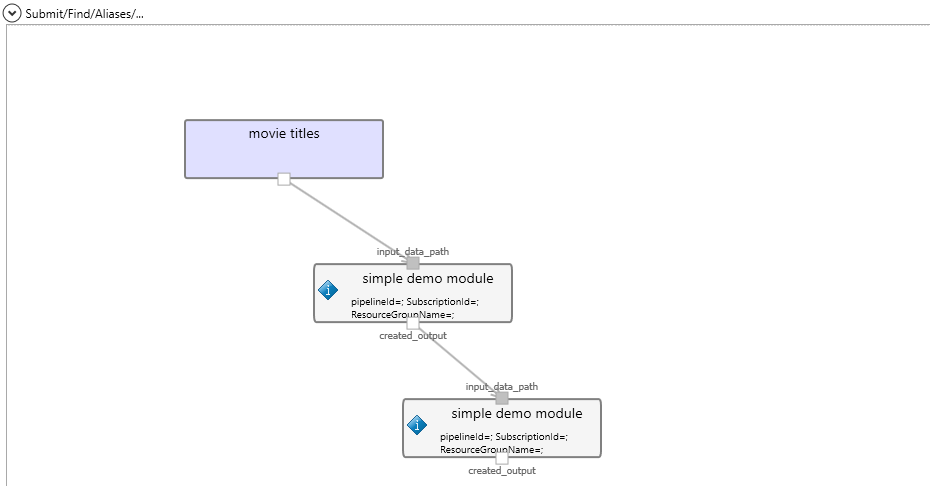
The ‘specify output location’ is a Datasource of ‘AzureBlobPath’ data type, so that we can use it to set the pipeline output’s setting.
Fill in the module parameters for both steps
Submit the experiment

Open your submitted experiment and check the execution logs
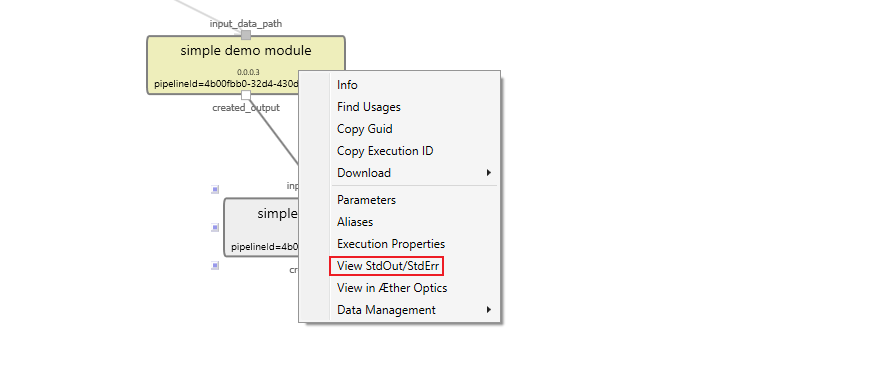
You can find the submitted AML pipeline run’s link in the exectuion logs.