Interactive debug component run in remote compute
Overview
In order to reproduce the runtime environment of component run, Component SDK supports remote debugging by creating a debug run that has the same environment in the remote compute. User could debug the component in the remote compute and reproduce the environment for the distributed case or GPU use case. This document describes the scenarios of this feature and how to use it.
There are four steps to debug in remote compute.
Generate debug run from an existing component run
In this step, it will reuse the config of previous component run to submit a component run to the compute specified by you. And the
sleep infinitycommand will be added before the step command to suspend the compute for debug operation.Connect to the remote compute or container
After the debug run is submitted to the compute, you could use
VScodeto connect to the remote compute by SSH. For ITP compute, it will automatically enable SSH. For AmlCompute, you need to use a SSH enabled AmlCompute.-
After login the remote compute or container by VScode, you can debug the script of debug run. If the command of the previous run startswith
python, it will automatically generate the.vscode/launch.jsonwhich is used to record the debugging configuration information. -
Because the component run is suspended, you need to cancel the debug run to release resources after debugging.
Limitation
For component type, remote debug supports Commandcomponent, Distributedcomponent and Sweepcomponent.
For remote compute type, remote debug supports AmlCompute and ITP compute. And the AmlCompute must be enabled SSH.
For component command, only python style command is supported to generate vscode launcher.json.
For execution OS type, only support Linux as OS type of component.
Prerequisites
Install VScode following the instructions here.
Install the extensions
Remote - SSHandDockerin VScode.For debugging in AmlCompute, need to install Docker on your machine and add it to the system path.
Using remote compute to debug component run
1. Generate debug run from existing component run
Click one step of the pipeline, the step run id is shown in the Details tab.
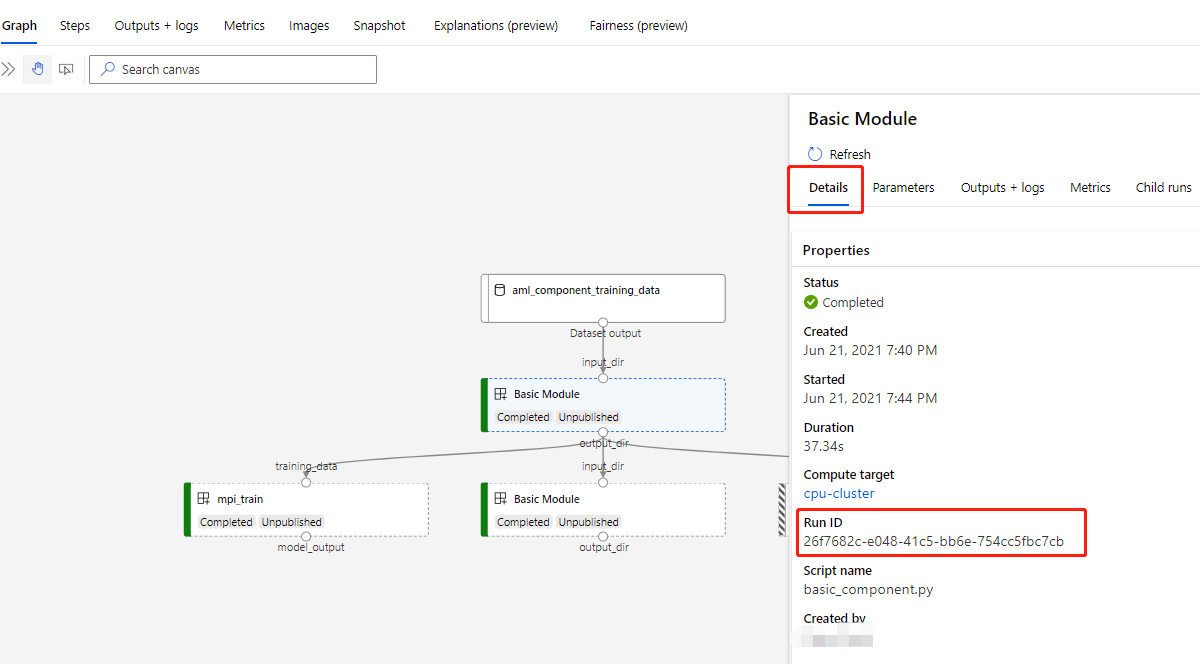
Generate debug run by component SDK.
from azureml.core import Workspace
from azure.ml.component import Run
workspace = Workspace.get(name=<workspace name>, resource_group=<resource group name>, subscription_id=<subscription id>)
failed_step_run = Run.get(workspace=workspace, run_id=<Your failed step run id>)
failed_step_run._debug(compute=<Remote debug compute name>)
If the type of remote compute is ITP compute, it will generate debug run in ITP compute. If the type of remote compute is AmlCompute, the debug run will be executed in AmlCompute. If not set remote compute, it will use the same compute config of component run to execute debug run.
2. Connect to the remote compute by VScode
After generate the debug step, the information about debug run and interactive debug steps will print in the terminal. The information about debug run likes below.
Sample of command component debug info:
INFO     - --------------------------------------------------------------------------------
INFO     - Information about debug run and remote compute:
INFO     - Link to job instance: https://ml.azure.com/runs/test_debug_run_1624009740_44cb4c6f?wsid=/subscriptions/xxx-xxx-xxx/resourcegroups/xxx/workspaces/xxx&tid=72f988bf-86f1-41af-91ab-2d7cd011db47
INFO     - Command Working Directory: /mnt/batch/tasks/shared/LS_root/jobs/azureml/test_debug_run_1624009740_44cb4c6f/wd/azureml/test_debug_run_1624009740_44cb4c6f
INFO     - Command: python basic_component.py --input_dir=/mnt/batch/tasks/shared/LS_root/jobs/azureml/test_debug_run_1624009740_44cb4c6f/wd/inputDir_187df8bc-2389-4d0a-b41c-1d10fe6be02c/Titanic.csv --str_param some_string --enum_param e1 --output_dir /mnt/batch/tasks/shared/LS_root/jobs/azureml/test_debug_run_1624009740_44cb4c6f/wd/output_dir_workspaceblobstore --int_param 123
INFO     - SSH connection command: ssh azureuser@xx.xx.xx.xx -p 50004
INFO     - --------------------------------------------------------------------------------
If debug a MPI distributed component, it will generate the distributed command used to execute distributed jobs. Sample of distributed component debug info:
INFO     - --------------------------------------------------------------------------------
INFO     - Information about debug run and remote compute:
INFO     - Link to job instance: https://ml.azure.com/runs/test_debug_run_1624009740_44cb4c6f?wsid=/subscriptions/xxx-xxx-xxx/resourcegroups/xxx/workspaces/xxx&tid=72f988bf-86f1-41af-91ab-2d7cd011db47
INFO     - Command Working Directory: /mnt/batch/tasks/shared/LS_root/jobs/azureml/test_debug_run_1624009740_44cb4c6f/wd/azureml/test_debug_run_1624009740_44cb4c6f
INFO     - Debug command:
INFO     - 	Command: python mpi_train.py --training_data $AZUREML_TRANS_DATA_PATH_training_data --max_epochs $AZUREML_PARAMETER_max_epochs --learning_rate $AZUREML_PARAMETER_learning_rate --model_output $AZUREML_TRANS_DATA_PATH_model_output
INFO     - 	Distributed command: ssh worker-0 "/bin/bash --login -c \"cd /workspaceblobstore/azureml/test_debug_run_1626164063_c3f6549c && mpirun --tag-output -hostfile /job/\\\${DLTS_JOB_ID}/hostfile --npernode 4  -bind-to none -x NCCL_DEBUG=INFO -x NCCL_TREE_THRESHOLD=0 -x LD_LIBRARY_PATH -x PATH -mca pml ob1 -mca btl ^openib -mca btl_tcp_if_include eth0 /bin/bash --login -c  \\\"/azureml-envs/azureml_c49e1f3d3829b3ca9fffc2a51fc57a49/bin/python mock_distributed_run.py python mpi_train.py --training_data \\\\\\\$AZUREML_TRANS_DATA_PATH_training_data --max_epochs \\\\\\\$AZUREML_PARAMETER_max_epochs --learning_rate \\\\\\\$AZUREML_PARAMETER_learning_rate --model_output \\\\\\\$AZUREML_TRANS_DATA_PATH_model_output\\\"\""
INFO     - SSH connection command:
INFO     - 	SSH to ps0: ssh -i //10.217.90.227/zhrua/.ssh/id_rsa -p 41327 xxx@azure-xxx.eastus.cloudapp.azure.com
INFO     - 	SSH to worker0: ssh -i //10.217.90.227/zhrua/.ssh/id_rsa -p 40485 xxx@azure-xxx.eastus.cloudapp.azure.com
INFO     - 	SSH to worker1: ssh -i //10.217.90.227/zhrua/.ssh/id_rsa -p 41807 xxx@azure-xxx.eastus.cloudapp.azure.com
INFO     - --------------------------------------------------------------------------------
Connect to the Linux container in ITP compute
After generate debug run, it will print debug info in terminal. You could follow these steps to connect to the ITP compute.
Note: If you want to connect to the remote compute without a password, you need to configure according to the steps in this section.
Note: Not support to debug the component with the curated environment in the ITP compute.
Add SSH connection config to SSH targets. Write the SSH connection command showed in terminal to the text box.
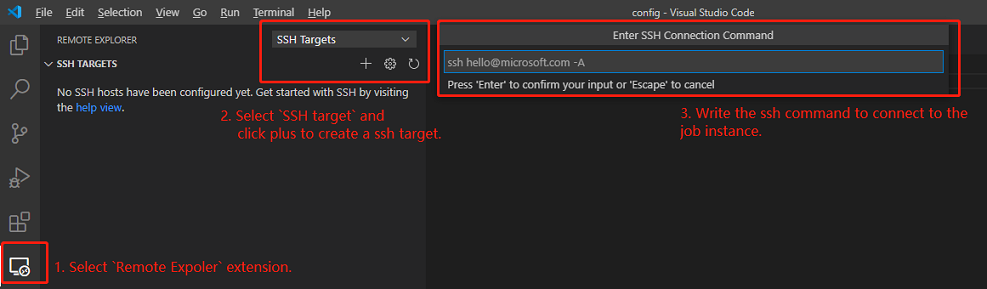
If you don’t config the ssh-key in ITP, you need to use the password to connect to the remote compute. You could find password in
User settings, see reference for more details.After create SSH target, you could find it in the remote explorer tab and click it to connect in a new window.
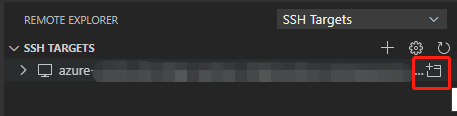
Connect to the Linux container in AmlCompute
If the os type of step run is Linux, you could follow these steps to connect to the linux container in AmlCompute.
Configure ssh-agent on the local system with the private key file produced above.
For Windows(OpenSSH), from an admin command prompt, run
sc config ssh-agent start=autoandnet start ssh-agent. Then, dossh-add <keyfile>.For Linux,
ssh-agentis present by default. Dossh-add <keyfile>.After execute commands, you could verify the identity is available to the agent with
ssh-add -l. It should list one or more identities that look something like2048 SHA256:abcdefghijk somethingsomething (RSA).Create and active a Docker context that points to the AmlCompute running Docker.
The remote username, host IP address and port are showed in terminal.
docker context create <docker-context-name> --docker "host=ssh://<username-in-remote>@<remote-machine-name-or-IP>:<port>"
docker context use <docker-context-name>
Manage Docker as a non-root user
By default, the Docker is owned by
rootand other users can only access it usingsudo. It will raise error when VScode connects to the container. You need to log in the AmlCompute by SSH and execute the command to create and add user to docker group.sudo groupadd docker sudo usermod -aG docker $USER
Connect the remote container in AmlCompute.
After active the Docker context, you could use the VScode extension
Dockerto find and connect to the container. The container name is the same as debug run id. You could right click the container showed in Containers tab, then clickAttach Visual Studio Codeto connect to the remote container.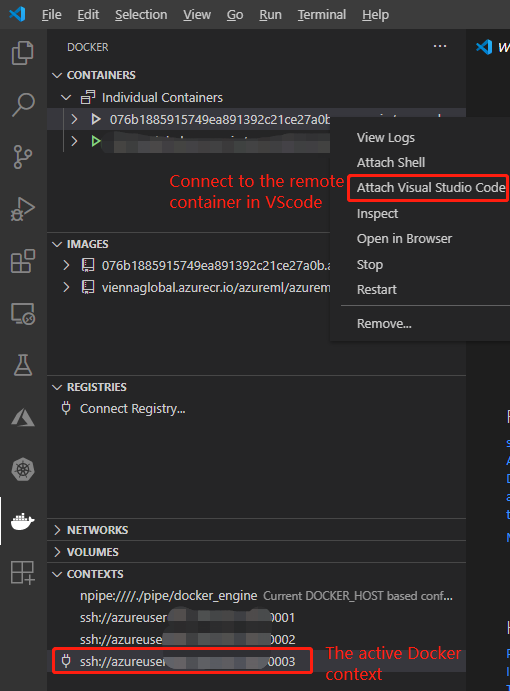
See reference for more details about connecting remote docker over SSH.
3. Debug in remote compute
After connect to the remote compute, you could use the working directory showed in terminal to open the workspace.
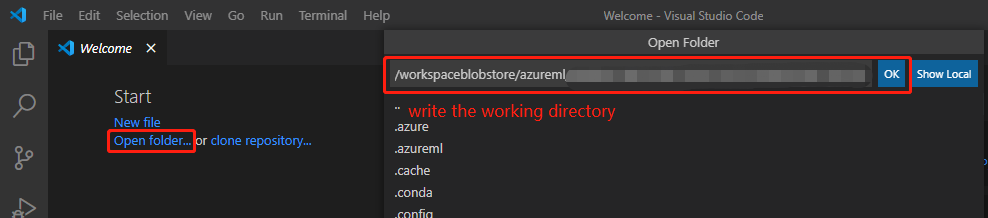
If your step command is python style command, which starts with python, it will generate the debug configuration in .vscode/launch.json. You need to install python extension of VScode. Then you could press F5 to directly debug it.
4. End debugging
First you need to cancel the component run by the run link showed in terminal when finished debugging, because the debug run adds sleep infinity to the debug run command to suspend.
Then you may need to recover the docker context through this command, if you debug in AmlCompute.
docker context use <previous context name>
FAQ
How to create AmlCompute enabled SSH
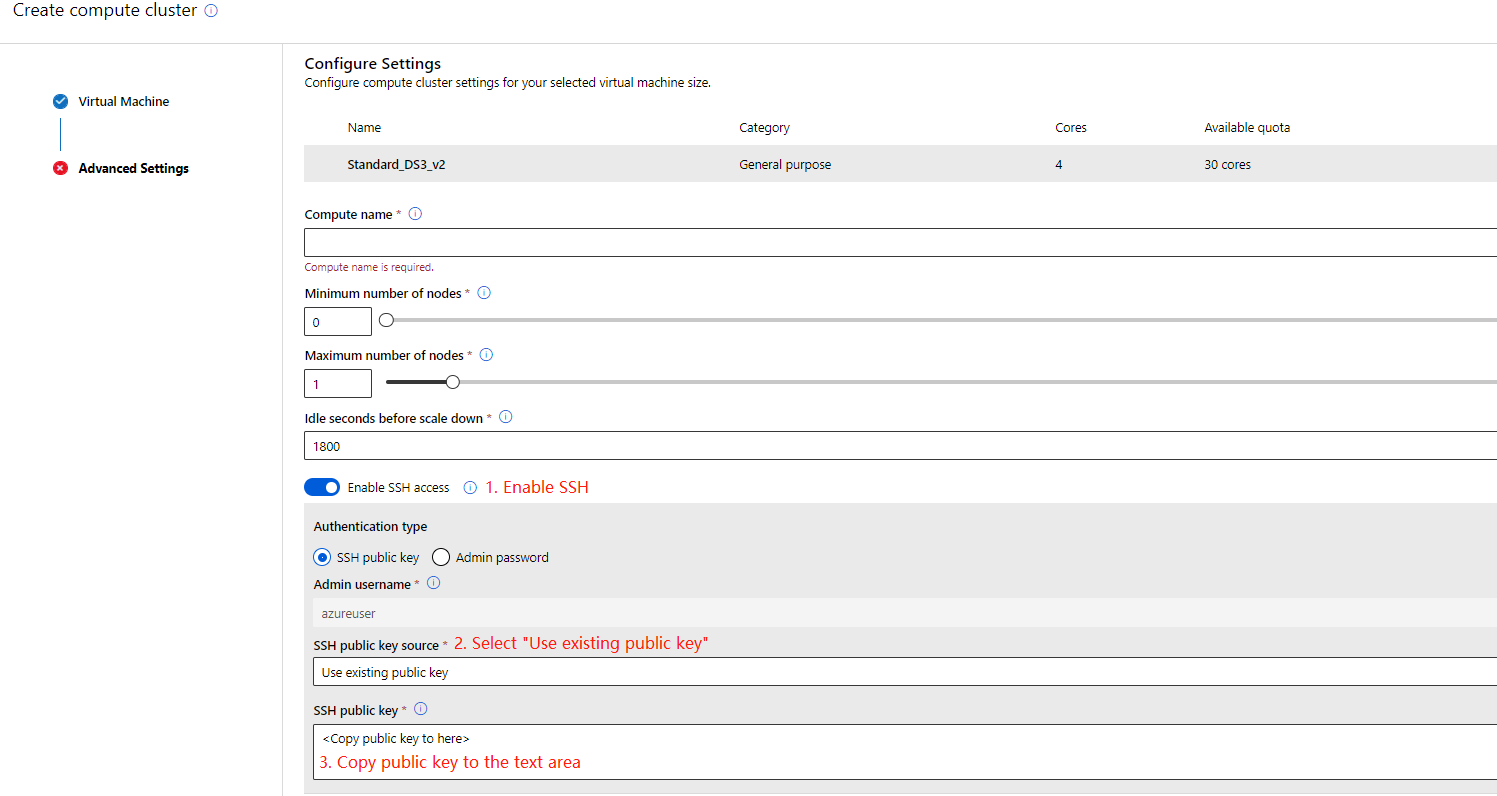
You could follow these steps to config the SSH settings when creating an AmlCompute.
Enable SSH in portal
Enable SSH access
Select
Use existing public keyto SSH public key source.Copy the public key to the text area.
Enable SSH by python SDK
You could set the admin username and public key to the configuration to create the SSH enabled AmlCompute.
from azureml.core.compute import ComputeTarget, AmlCompute
compute_config = AmlCompute.provisioning_configuration(vm_size='STANDARD_D2_V2',
                                                       max_nodes=4,
                                                       idle_seconds_before_scaledown=2400,
                                                       admin_username=<Your admin username>,
                                                       admin_user_ssh_key=<The public key>)
compute = ComputeTarget.create(workspace, <Your compute name>, compute_config)
compute.wait_for_completion(show_output=True)
See reference for more detail about AmlCompute configuration.