Inputs and Outputs
The component interface is defined by its inputs and outputs.
The input could either be an Input Port or a Parameter. The output could only be an Output Port.
Input ports and output ports typically refer to a path. In Designer, they will be displayed as a port on the component. They could have arbitrary type names such as CsvFile, ImageFolder to describe the underlying data. A component’s output port could be connected to another component’s input port, given they have the same type name.
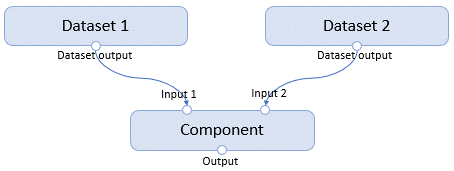
Parameters are input values passed to the component by the command line while executing. In Designer, they are displayed on the right panel of the component. A parameter could only have scalar values such as Integer, String, Boolean, Enum. Each parameter could have additional attributes such as default, min, max, etc.
Configure runtime behavior of Inputs and Outputs
The configurations of Input and Output ports are used to adjust their behaviors while running.
Input configuration
Configure input port (input parameters are not supported) settings of a component.
Supported settings:
For FileDataset:
| Name | Type | Default value | Description |
|---|---|---|---|
| mode | "mount", "download" and "direct" | According to data type. "mount" for path, "direct" for AzureMLDataset. |
The mode that will be used for this input. |
| path_on_compute | str | A temporary folder on Compute. | The path of input data on the compute. |
For TabularDataset:
It’s important to note that, if the data type of input is “path” and the input dataset is a TabularDataset, user must set the input’s mode to “direct” in the input configuration, because the default mode of “path” data type is “mount”, while the TabularDataset only supports “direct” mode, thus, user needs to configure the mode manually.
| Name | Type | Description |
|---|---|---|
| mode | "direct" | The mode that will be used for this input. |
Input dataset mode
The mode of input dataset contains: mount, download and direct.
| Mode | Info passed to command | Description |
|---|---|---|
| mount | path | Load the data files used by scripts at the time of processing. |
| download | path | Load all data files referenced by the dataset before processing. |
| direct | id | Dataset is passed as id in the component command, user can get or do other operations on the dataset in the component script. |
Default mode differs according to different data types, user should configure appropriate dataset mode according to dataset’s type and dataset’s usage scripts. Note mode difference won’t affect component reuse behavior.
| Data Type | Default mode |
|---|---|
| path | mount |
| AzureMLDataset | direct |
Note:
Which mode should the input dataset use
The mode of the input dataset is highly related to how the dataset is processed in the implementation of the component, the component might break if a wrong mode is configured.
For built-in Components, “direct” mode is not supported for both FileDataset and TabularDataset, user should use “mount” or “download” mode.
How should the dataset be consumed
mount/download: just like the local data. For “mount” mode, operations on data, such as examples below,
pandas.read,listdir, andopen, will trigger mounting the dataset to compute. “download” mode doesn’t need a trigger, it will download the data before processing.
    import pandas
    df = pandas.read_csv("file/path/got/from/command")

    # Or
    open(file="file/path/got/from/command", mode='r') as file:
        # proceed your operations on the file
        print(file)

    # Or there are sub-files under file path
    import os
    path = "file/path/got/from/command"
    dirs = os.listdir(path)
    for file in dirs:
        # proceed your operations on the file
        print(file)
direct: User could get the dataset by id. The current workspace can be got from the current service context.
    from azureml.core import Run
    from azureml.core import Dataset

    run = Run.get_context()
    ws = run.experiment.workspace
    dataset = Dataset.get_by_id(ws, "id/got/from/command")
Path on compute
path_on_compute differs according to the OS, E.g., “/tmp/path/” on Linux compute, “C:/tmp/path/” on Windows compute.
If it is not specified, a temp folder will be used. If the specified path doesn’t exist, a new folder will be created for writing data.
Absolute path and relative path are both supported. Besides, When the input mode is “direct”, the “path_on_compute” setting will not take effect,
because under the “direct” mode, only the ID of the dataset is passed to the component, the content of the dataset will not be loaded to compute.
Example usage
Suppose we have a component with an input named “input_path”, its configuration will be:
component.inputs.input_path.configure(mode="mount",
                                      path_on_compute="/tmp/input/path/on/compute/")
Output configuration
Configure output port settings of a component.
Supported settings:
| Name | Type | Default value | Description |
|---|---|---|---|
| datastore | azureml.core.datastore.Datastore | Default datastore in the Workspace | The datastore that will be used for the output. |
| mode | "upload", "mount", "link" or "hdfs" | "upload" | Specify use "upload", "mount", "link" or "hdfs" to access the data. |
| path_on_compute | str | A temporary folder on Compute. | The path of output data on the compute. |
| path_on_datastore | str | Relative path on datastore: azureml/{run-id}/{output-name} | The relative output path on datastore. |
Output dataset mode
The mode of output dataset contains: mount and upload.
| Mode | Description |
|---|---|
| mount | Upload data files at the time of data generating. |
| upload | Upload data files after finished generating all output data. |
| link | Link an existed dataset as the output of current component. |
| hdfs | Used in AmlSpark component scenario (Work in Progress). |
Example usage
Suppose we have a component with an output port named “test_link_output”, code below illustrates how to link output with dataset.
import argparse
from azureml.core import Run, Dataset


if __name__ == '__main__':
    parser = argparse.ArgumentParser()
    parser.add_argument(
        '--input_dataset',
        help='The input dataset.',
    )
    args, _ = parser.parse_known_args()
    run = Run.get_context()
    workspace = run.experiment.workspace
    # this will link a component output with its input dataset
    dataset = Dataset.get_by_name(workspace, name=args.input_dataset)
    run.output_datasets['test_link_output'].link(dataset)
Path on datastore
path_on_datastore specifies the relative path in the backing storage for the output data. Pattern path is supported,
which means you can use {run-id} and {output-name} expressions in the path_on_datastore path,
E.g. “azureml/component/{run-id}/{output-name}”, to specify the run-id and output’s name in the output’s path on datastore.
Running Component on Windows compute and HDInsight Component are not verified yet.
How to Find the output data on datastore:
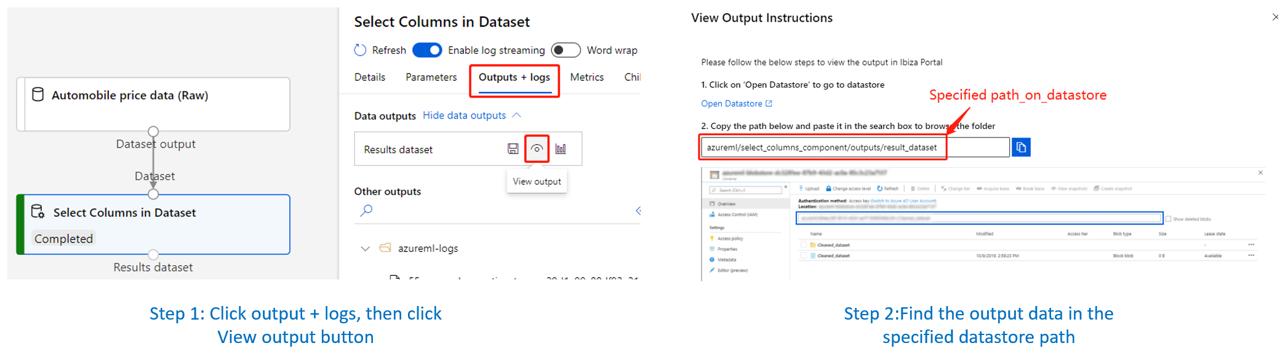
Example usage
Suppose we have a component with an output port named “result_dataset”, code below illustrates a sample configuration.
from azureml.core import Datastore
# "my_datastore" is a datastore on the workspace, which can be got by `Datastore.get`.
my_datastore = Datastore.get(workspace=workspace, datastore_name="datastore_name")

component.outputs.result_dataset.configure(
    datastore=my_datastore,
    mode="mount",
    path_on_compute="/tmp/component/run/compute/", # Suppose it's on a Linux compute
    path_on_datastore="azureml/component/outputs/result_dataset"
    # Or use pattern path
    # path_on_datastore="azureml/component/{run-id}/outputs/{output-name}"
)
Override output path using pipeline parameters
Advanced Example:
Allow user link
path_on_datastorewith pipeline parameter.After pipeline is constructed, user can override pipeline output
datastoreandpath_on_datastoreduring submit usingpipeline_parameters.
from pathlib import Path
from azureml.core import Workspace, Datastore
from azureml.data.datapath import DataPath

from azure.ml.component import dsl, Pipeline
from azure.ml.component.dsl.types import Output

@dsl.command_component()
def test_input_output(result_dataset: Output, result_dataset2: Output):
    (Path(result_dataset) / 'output.txt').write_text("result_dataset")
    (Path(result_dataset2) / 'output.txt').write_text("result_dataset2")


@dsl.pipeline(name='sample_pipeline', default_compute_target='cpu-cluster')
def test_pipeline(path='custom/defined/path', datastore='workspacefilestore', path_on_compute='/tmp/component', mode='mount') -> Pipeline:
    # Support direct assign path to path_on_datastore
    # the value of path_on_datastore will be set as 'custom/defined/path'
    component1 = test_input_output()
    component1.outputs.result_dataset.configure(
        path_on_datastore=path,
        datastore=datastore,
        path_on_compute=path_on_compute,
        mode=mode
    )

    # Support connect string and path and assign value to path_on_datastore
    # the value of path_on_datastore will be set as 'azureml/decode_output/custom/defined/path'
    component2 = test_input_output()
    component2.outputs.result_dataset.configure(
        path_on_datastore=f'azureml/decode_output/{path}',
        datastore=f'{datastore}',
        path_on_compute=f'{path_on_compute}/run/compute/',
        mode=f'{mode}'
    )

    # Support direct assign a patten string to path_on_datastore
    # the value of path_on_datastore will be set as 'azureml/{run-id}/decode_output'
    component3 = test_input_output()
    component3.outputs.result_dataset.configure(
        path_on_datastore='azureml/{run-id}/decode_output',
        datastore='workspacefilestore',
        path_on_compute='/tmp/component',
        mode='mount'
    )

    # Support binding component output as pipeline output
    return component1.outputs


if __name__ == '__main__':

    # typically user might customize path to a date str
    path = '2022/04/20'
    # EXAMPLE: link output path_on_datastore with pipeline parameter
    pipeline = test_pipeline(path=path)

    # EXAMPLE: override pipeline output after pipeline construction
    ws = Workspace.from_config()
    default_datastore = ws.get_default_datastore()
    my_datastore = Datastore.get(workspace=ws, datastore_name="test")
    new_output_path = 'azureml/{run-id}/{output-name}/override_output_path'
    pipeline_run = pipeline.submit(
        workspace=ws,
        pipeline_parameters={
            # component1.result_dataset final value: (my_datastore, path)
            # node level path_on_datastore parameter link takes higher priority
            'result_dataset': DataPath(my_datastore, new_output_path),
            # component1.result_dataset2 final value: (my_datastore, new_output_path)
            'result_dataset2': DataPath(my_datastore, new_output_path),
        }
    )