Starlite Component
Overview
A StarliteComponent is a component that can be used to submit starlite jobs on virtual clusters which have been migrated Azure Data Lake (ADL). This component is for Microsoft internal only. This component is in private preview, please play it around and share feedback with us.
Prerequisites
Before using starlite component, you should be familiar with:
To submit and run the starlite job in virtual cluster successfully, you should have below access:
Existing AEther Starlite module.
Scenarios
Run your cosmos starlite jobs in AzureML.
Limitation
The Starlite module mainly operates SourceDepot, which affects online Bing Search directly. Thus, the owner need to reserve the capability of creating/modifying modules to the maintenance team instead expose it to end users. In addition, the compute cluster is deeply integrated with AEther module system at runtime, and the owner does not want to take the risk of refactoring legacy code. Thus, we agreed on the design of referencing existing AEther Starlite module in AzureML component and configure the I/O ports accordingly, and hence introduces the following limitations:
AzureML Starlite module must reference existing AEther Starlite module.
The inputs/outputs configuration of AzureML Starlite module must align with the referenced AEther Starlite module on both amount and type. AEther
Filetype corresponds toAnyFileand AEtherDirectorytype corresponds toAnyDirectory. Additionally, if the type of the port isFile, the value passed to the port must be path of the parent directory of the file instead of the file itself, and the file name must be specified in thecommandfield with hard-coded value or parameter value. TheSdInfoResultFromWorkflowFileNamein the example yaml is an example of this. The limitation is caused by the fundamental difference of data management between AzureML and AEther, the latter forces the name of allFileto be the guid dataId, while the former supports custom specified name, thus AEther does not provide contract to pass file name from AzureML in input ports.The inputs/outputs data must reside in Azure Data Lake on Cosmos directly or indirectly under “local” folder.
The Starlite cluster has a known issue that a job fails during command line execution will show up as “Completed”, so you need to check the stdoutlogs.txt and stderrlogs.txt to see whether the command line execution is successful.
How to write StarliteComponent yaml spec
Please refer to StarliteComponent spec doc.
Example yaml:
$schema: https://componentsdk.azureedge.net/jsonschema/StarliteComponent.json
name: microsoft.com.azureml.samples.starlite.RankersInAugmentation
version: 0.0.1
display_name: CheckSdInfoResult (web-only) RankersInAugmentation
type: StarliteComponent
description: Check SdInfoResult and transfer settings file as is
tags: {category: Component Tutorial, contact: amldesigner@microsoft.com}
inputs:
  SdInfoResultFromWorkflow:
    type: [AnyFile, AnyDirectory]
    optional: false
  SdInfoResult:
    type: [AnyFile, AnyDirectory]
    optional: false
  RunId:
    type: string
    description: a parameter value
    optional: true
  SdInfoResultFromWorkflowFileName:
    type: string
    default: \\CheckSdInfoResultInput1
    optional: false
  SdInfoResultFileName:
    type: string
    default: \\CheckSdInfoResultInput2
    optional: false
outputs:
  SdInfoResultAll:
    type: [AnyFile, AnyDirectory]
  SettingsFile:
    type: [AnyFile, AnyDirectory]
command: >-
  RankersInAugmentationModule.exe CheckSdInfoResult {inputs.SdInfoResultFromWorkflow}{inputs.SdInfoResultFromWorkflowFileName} {inputs.SdInfoResult}{inputs.SdInfoResultFileName}
  "" {outputs.SdInfoResultAll} {outputs.SettingsFile}
starlite:
  ref_id: <your-aether-module-id>
Note: “type” of each input/output must be aligned with the corresponding port in AEther module. AnyFile for file port and AnyDirectory for directory port.
See more examples in github samples repo.
Follow how to access instructions if you meet 404 error when accessing the samples.
Inputs
Inputs are data files feed into the Starlite Component and used in the Starlite command. It can be defined in a DataSet/DataReference or provided as output from a previous module. Starlite Cloud only supports input from Azure Data Lake on Cosmos. User who submits the job must have permission to access the data storage.
Samples
How to use starlite component - Demonstrates how to use starlite component to run cosmos starlite jobs.
FAQ
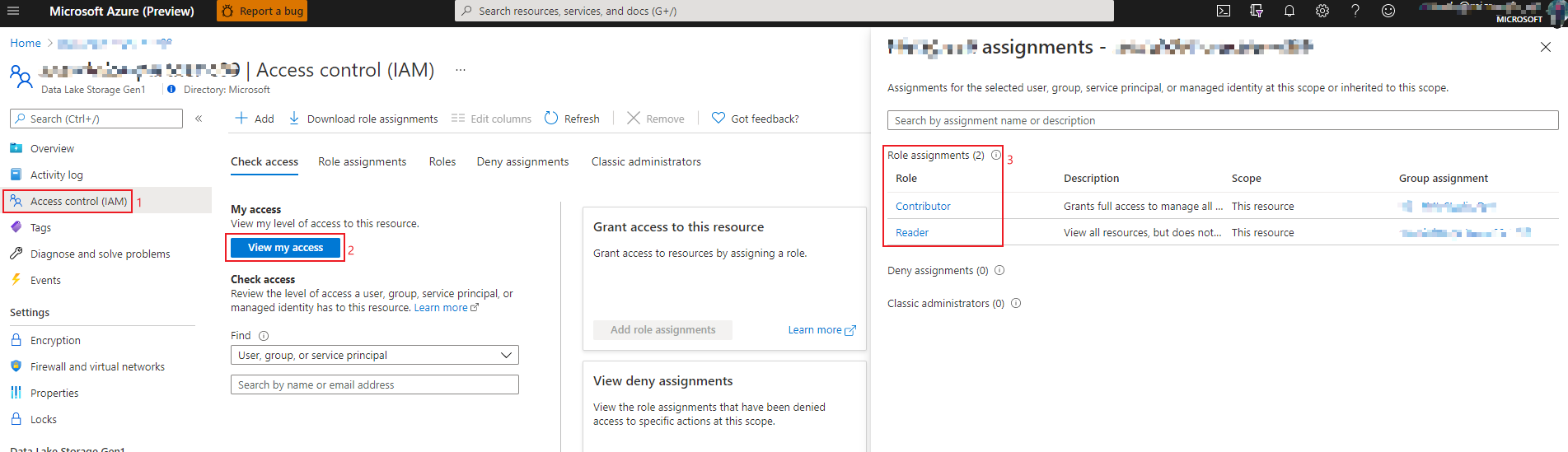
How to check my role in ADLS
Login to Azure portal and open ‘Access control’ panel of your ADLS.
Click ‘View my access’ button.
Check your role assignment in the right panel.
How to check my access in ADLS data explorer
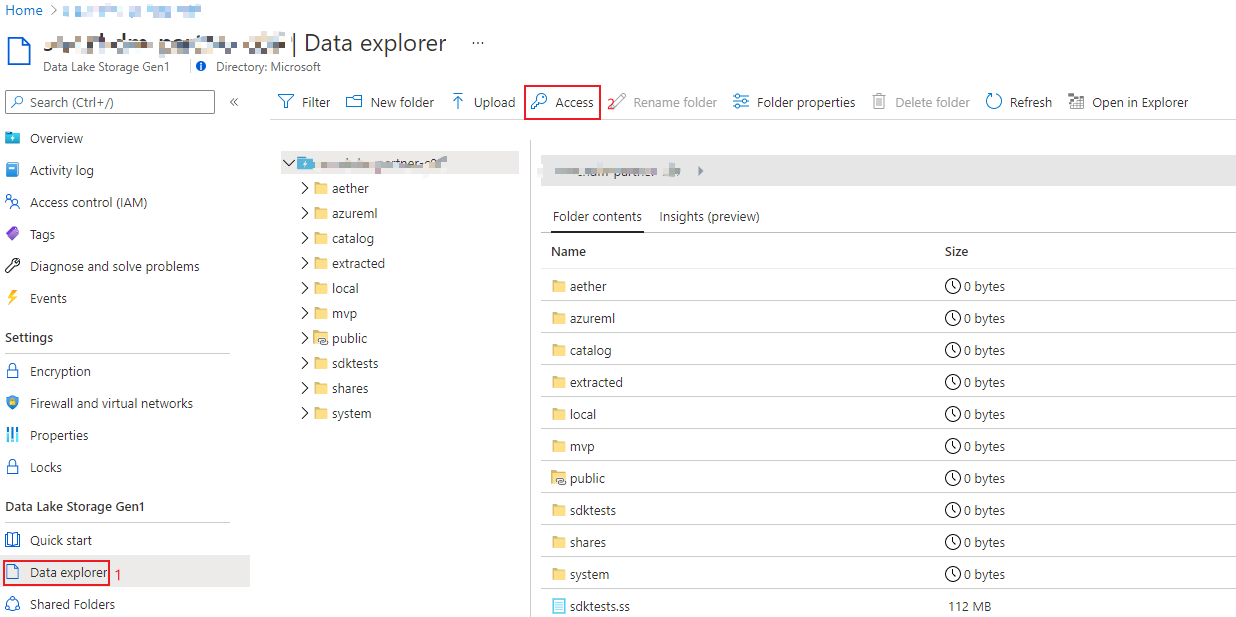
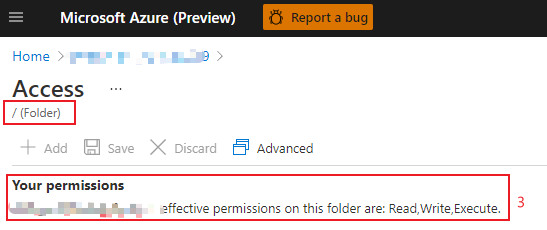
Login to Azure portal and open ‘Data explorer’ panel of your ADLS.
Click ‘Access’ button.
Check your access of the root folder.