AetherBridge Component
Overview
An AetherBridge component is a component that can be used to bridge job request to AEther environment. This component is for Microsoft internal only. This component is in private preview, please play it around and share feedback with us.
Prerequisites
Before using AetherBridge component, you should be familiar with:
To use AetherBridge component to submit job to AEther successfully, you should have below access:
Existing AEther module. Please notice that AetherBridge component is a temporary approach, we will provide AML native solution in long-term. If your AEther module needs to go with AetherBridge component, please follow this form to register your ask.
Scenarios
Bridge your job requests to AEther through AetherBridge component in AzureML.
Limitation
AetherBridge component is a temporary solution, and bridging job to AEther introduces the following limitations due to the requirement of AEther:
AEther Exepool downloads the whole parent folder of the input file. So please DO NOT put your input file in a large parent folder to avoid long downloading latency or even disk full error. Please copy your input file to an empty folder with an extra Command Component if neccessary.
AzureML AetherBridge component must reference an existing AEther module.
The inputs/outputs configuration of AzureML component must align with the referenced AEther module on both amount and type. AEther
Filetype corresponds toAnyFileand AEtherDirectorytype corresponds toAnyDirectory. Additionally, the inputs/outputs relative path must fit cosmos path constraint, e.g, no spaces is allowed.The inputs/outputs data must reside in Azure Data Lake on Cosmos directly or indirectly under “local” folder.
How to write AetherBridge component yaml spec
Please refer to AetherBridge component spec doc.
Example yaml:
$schema: https://componentsdk.azureedge.net/jsonschema/AetherBridgeComponent.json
name: sample_aetherbridge_component_for_scraping_job
version: 0.0.1
display_name: Sample AetherBridge Component for Scraping Job
type: AetherBridgeComponent
inputs:
  scraping_config:
    type: AnyFile
    optional: false
  entities:
    type: AnyFile
    optional: false
  scraping_backend:
    type: string
    optional: false
  entity_text_column_name:
    type: string
    optional: false
  entity_id_column_name:
    type: string
    optional: false
outputs:
  scrape_job_info:
    type: AnyFile
  scrape_file:
    type: AnyFile
  status_file:
    type: AnyFile
  job_statistics:
    type: AnyFile
  was_scrape_canceled:
    type: AnyFile
command: >-
  ScrapeSWS.exe -b {inputs.scraping_backend} -c {inputs.scraping_config} -e {inputs.entities} -m "{inputs.entity_text_column_name}" -g "{inputs.entity_id_column_name}" -o {outputs.scrape_job_info} -s {outputs.scrape_file} -a {outputs.status_file} -k {outputs.job_statistics} --cancelFile {outputs.was_scrape_canceled}
aether:
  module_type: ScrapingCloud
  ref_id: <your-aether-module-id>
Note: “type” of each input/output must be aligned with the corresponding port in AEther module. AnyFile for file port and AnyDirectory for directory port. The port name of scraping job output must be
scrape_file, it’s corresponded to theScrape Fileoutput port in the AEther module.
See more examples in github samples repo.
Follow how to access instructions if you meet 404 error when accessing the samples.
Inputs
Inputs are data files fed into the AetherBridge component for aether jobs in aether command. It can be defined in a DataSet/DataReference or provided as output from a previous module. AetherBridge component only supports input from Azure Data Lake on Cosmos. User who submits the job must have permission to access the data storage.
How to consume an AetherBridge component
Get dataset from your ADLS
from azureml.core import Dataset

scraping_config_dataset = Dataset.File.from_files(path=(adls, os.environ.get("ADL_SCRAPING_RELATIVE_PATH", "/local/<your-scraping-config-file-path>")))
entities_dataset = Dataset.File.from_files(path=(adls, os.environ.get("ADL_SCRAPING_RELATIVE_PATH", "/local/<your-entities-file-path>")))
Load component
from azure.ml.component import Component

scraping_func = Component.from_yaml(ws, yaml_file='./component_spec.yaml')
Create pipeline
from azure.ml.component import dsl, Pipeline

@dsl.pipeline(
    name='SubmitScrapingJobThroughAetherBridge',
    description='Submit scraping Job through AetherBridge component using SDK',
    default_datastore=adls
)
def scraping_pipeline_test() -> Pipeline:
    scraping_pipeline_test_file_result = scraping_func(
        scraping_config=input_dataset_config,
        entities=input_dataset_entities,
        scraping_backend="Prod",
        entity_text_column_name="<entity-text-column-name>",
        entity_id_column_name="<entity-id-column-name>"
    )
    return scraping_pipeline_test_file_result.outputs
Validate and submit the pipeline
scraping_pipeline = scraping_pipeline_test()
scraping_pipeline.validate()

run = scraping_pipeline.submit()
run.wait_for_completion()
Sample notebook
How to use AetherBridge component to submit scraping job - Demonstrates how to use AetherBridge component to submit scraping job.
Note: Usually there is no need for customers to set compute and runsettings. Only supports input from Azure Data Lake on Cosmos.
FAQ
How to check my role in ADLS
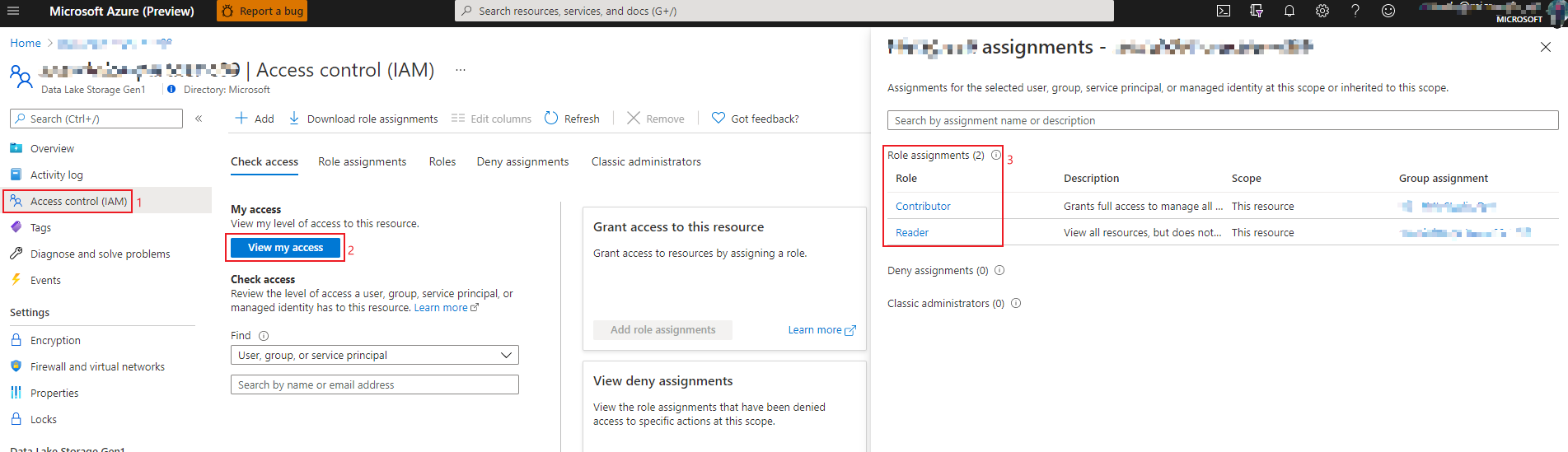
Login to Azure portal and open ‘Access control’ panel of your ADLS.
Click ‘View my access’ button.
Check your role assignment in the right panel.
How to check my access in ADLS data explorer
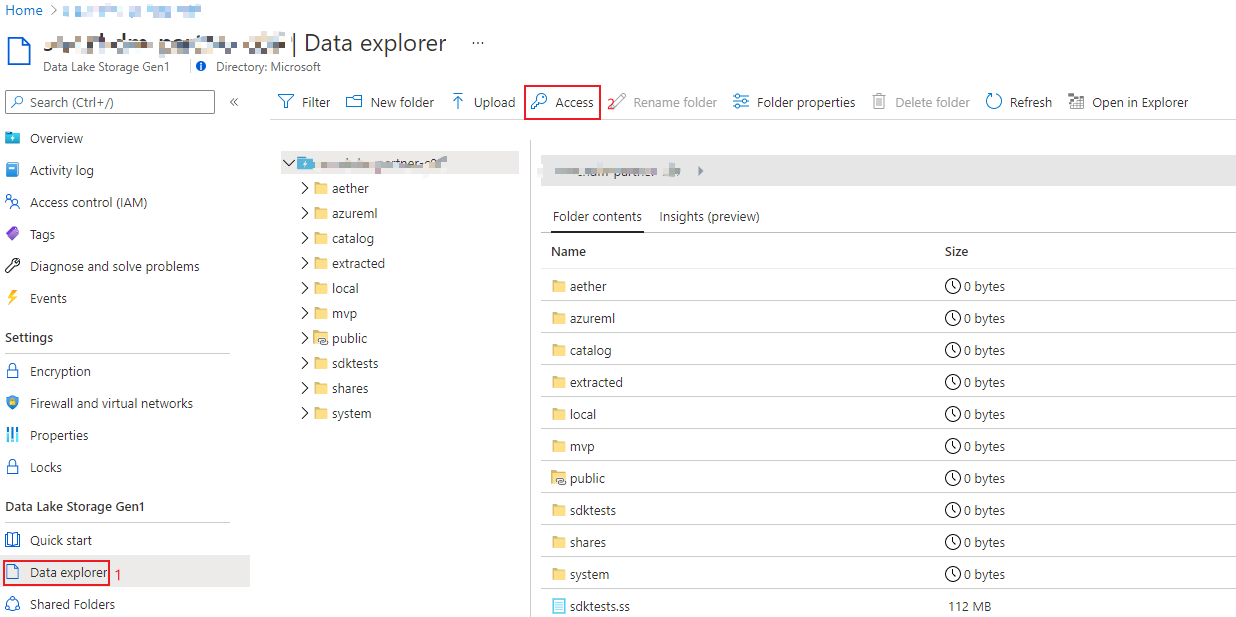
Login to Azure portal and open ‘Data explorer’ panel of your ADLS.
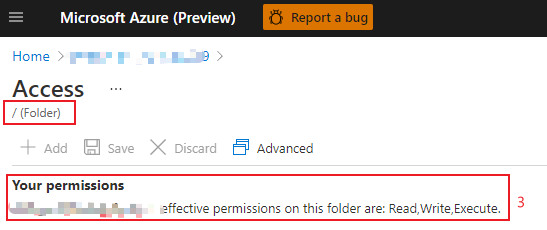
Click ‘Access’ button.
Check your access of the root folder.